How to Install Linger AI Agent on Mac (Tested on an M1 Pro with 32 GB RAM)
Tested on: MacBook Pro · Apple M1 Pro (10-core) · 32 GB unified memory · macOS 14.8.1 — Linger 0.1.10 — screenshots taken 2026-11-27 — Data last verified: 2026-11-27
Short answer
Installing Linger AI Agent on an Apple silicon Mac is easy: download the 440 MB DMG from GitHub Releases, drag the app into Applications, and the built-in install step took 46 seconds on our machine. The app is signed and notarized, so Gatekeeper let it open with no warnings and no settings changed.
The part nobody warns you about comes next. The setup wizard checks your currently available memory — not your total RAM — before allowing the local model. Our test Mac has 32 GB, but with only 4.5 GB free at that moment, Linger refused the local model and asked us to close apps. We finished the install with a BYOK (bring your own key) endpoint instead, and — unlike our Linux test, where the same kind of setup failed at runtime — the Mac run completed a real task correctly. Details, timings, and the one error that cost us a retry are all below.
Before you start: decide how Linger will think
The install itself takes minutes. The only decision that can slow you down is the model source, because the wizard asks you to pick one before it installs anything:
| Model source | What it means | What you need ready |
|---|---|---|
| Local model | Runs entirely on your Mac. Most private; nothing leaves the machine. | Enough free memory at install time (see the 32 GB surprise below) and ~16 GB of free disk for the download. |
| Subscription | Uses your existing ChatGPT or Claude subscription through a runtime. | That account's sign-in, done by you in the wizard. |
| BYOK | Connects your own API key (OpenAI- or Anthropic-compatible endpoint) through Linger's local gateway. | The endpoint URL and your API key. This is the route we tested. |
Requirements: an Apple silicon Mac (M1 or later) running macOS 14.0 or newer, and about 5 GB of free disk for the app and its data (the app is 1.2 GB; its data folder, ~/.simplexai, was about 1.1 GB after setup). Add ~16 GB more if you plan to download the local model. On an Intel Mac there is no native build — your options are on our Intel Mac page. Not sure your memory is enough? Run your numbers through the hardware checker first.
Step 1 — Download from GitHub Releases and verify the checksum
Linger Desktop is distributed through the simplexai-labs/linger GitHub Releases page (the download buttons on the official site still say "Coming soon"). For version 0.1.10, the Mac file is Linger-0.1.10-macos-arm64.dmg, 461,122,820 bytes (about 440 MB).
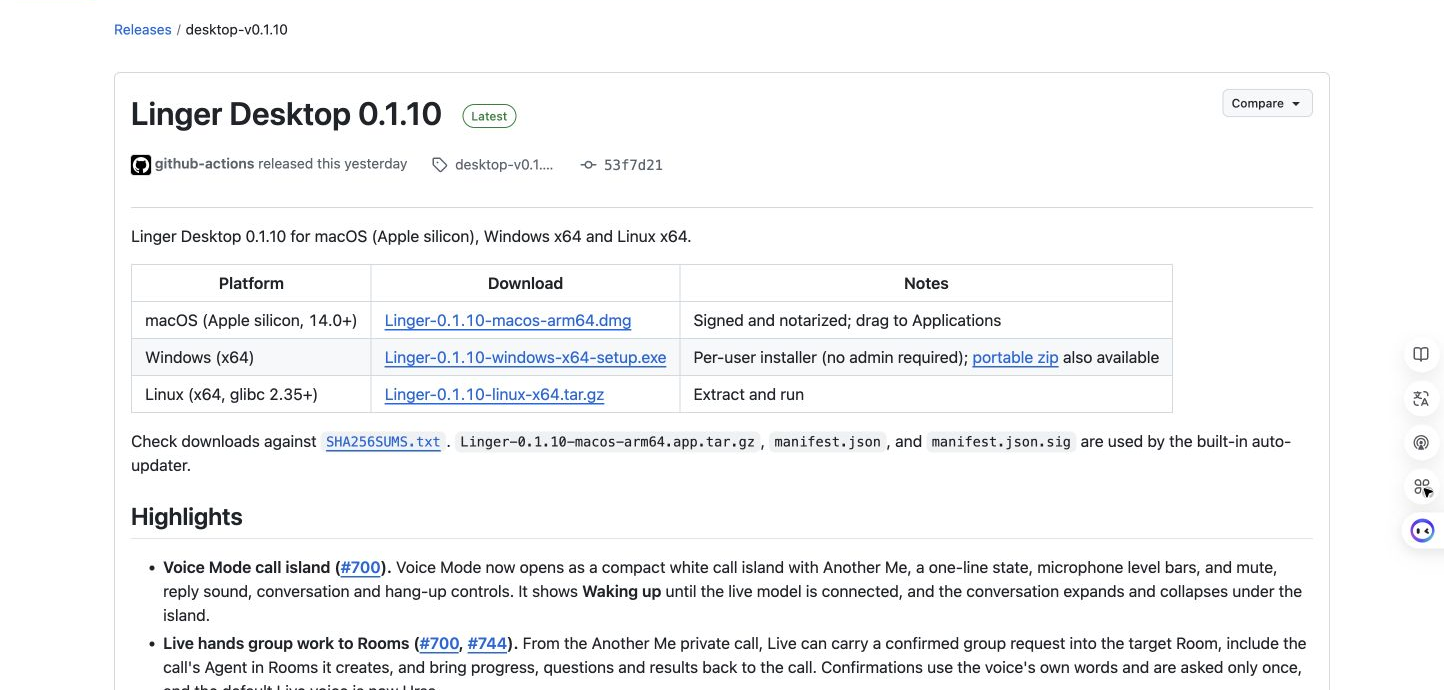
Download SHA256SUMS.txt from the same release and check the file before opening it — it takes ten seconds:
shasum -a 256 Linger-0.1.10-macos-arm64.dmg
grep 'Linger-0.1.10-macos-arm64.dmg' SHA256SUMS.txt
On our machine both values matched exactly (c60895fb…6f35). If yours don't match, delete the file and download again — do not install it. Our first download actually broke off mid-transfer; resuming it and then verifying the checksum is the safe order (see Troubleshooting).
Step 2 — Drag into Applications (Gatekeeper stays quiet)
Open the DMG and drag Linger.app onto the Applications shortcut. That's the whole step.
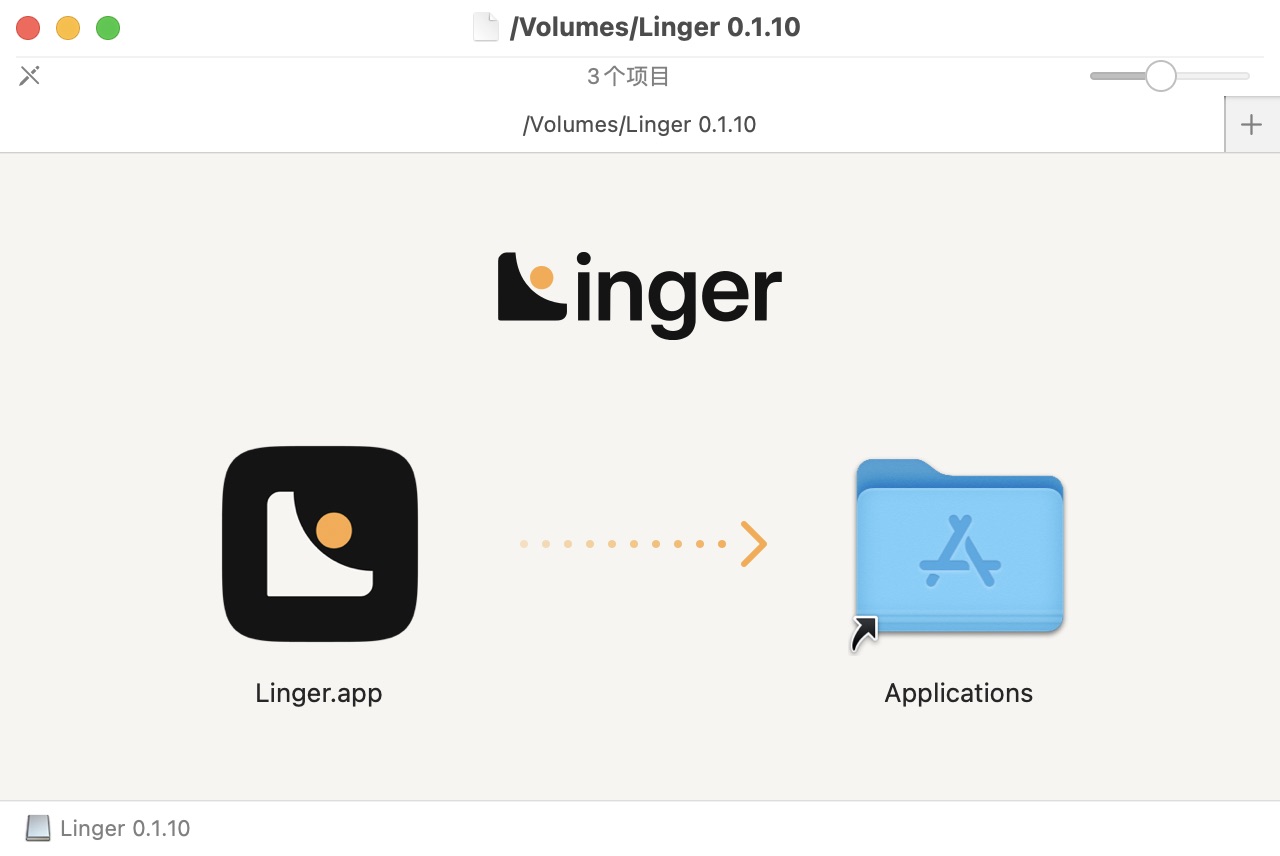
Because the 0.1.10 build is signed with a Developer ID (Simplex AI Technologies) and notarized by Apple — we confirmed "accepted, source=Notarized Developer ID" with spctl — the first launch opened normally. No "unidentified developer" warning, no security settings changed, no workarounds. If your Mac does block it, right-click the app and choose Open, or allow it under System Settings → Privacy & Security → "Open Anyway". Never disable Gatekeeper globally just to install one app.
Step 3 — The setup wizard, and the 32 GB surprise
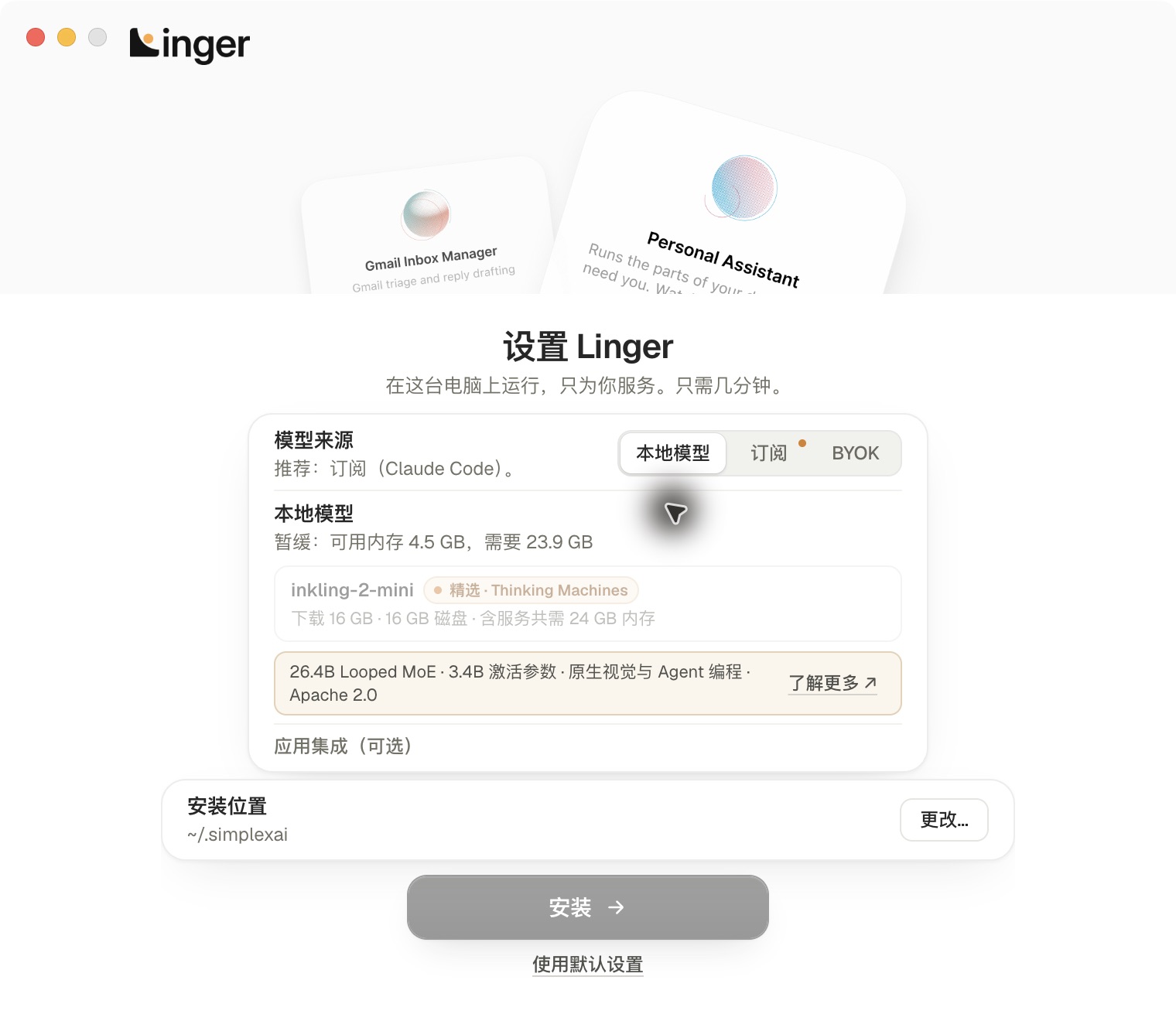
First launch opens the setup wizard. It asks for your model source and runtime (we kept the recommended Claude Code runtime), an install location (the default ~/.simplexai is fine), and offers optional app integrations such as Gmail and Calendar — those are yours to connect later, and nothing in this guide requires them.
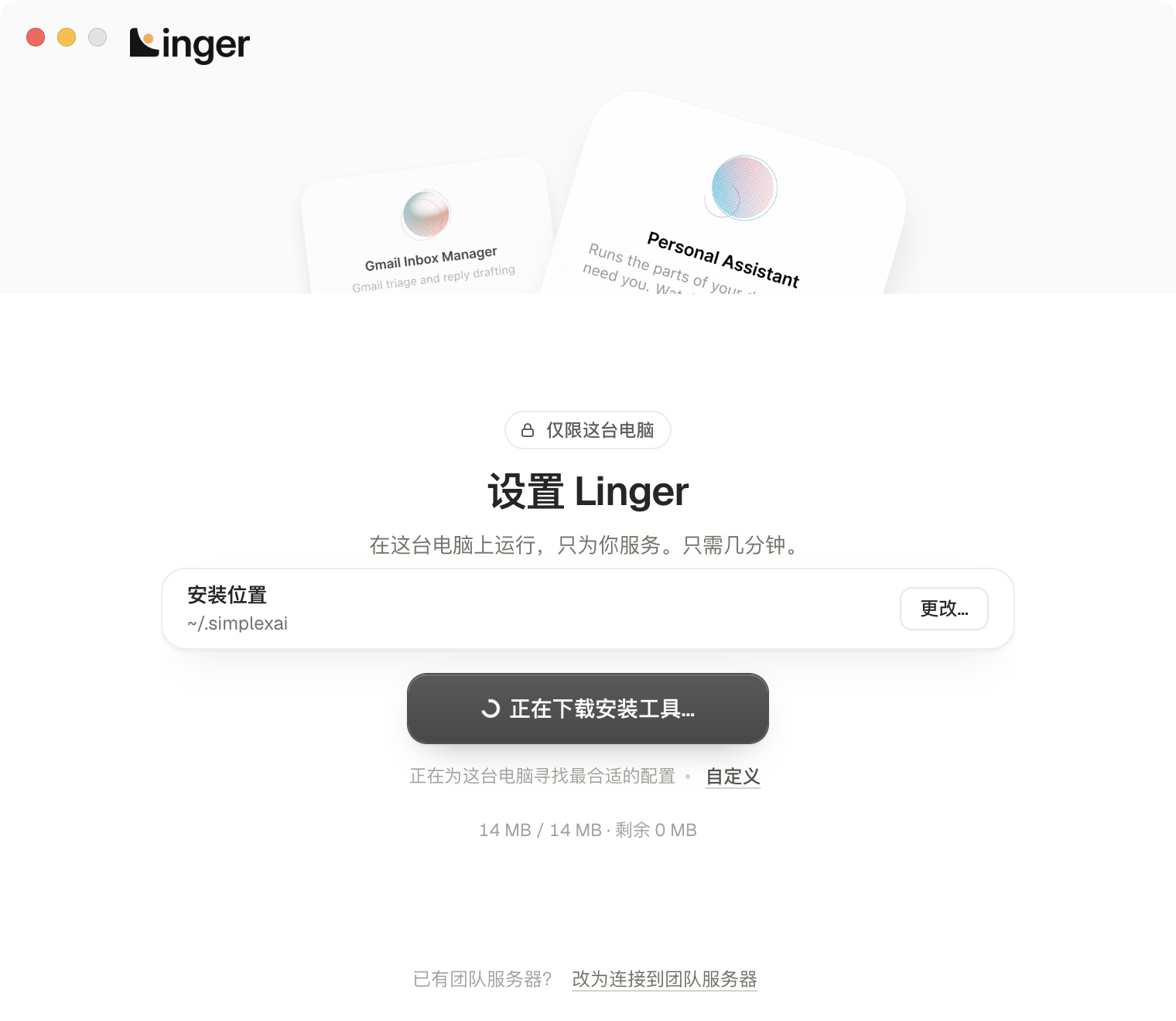
Before anything else, the wizard checks your hardware — and this is where our install took its only real turn:
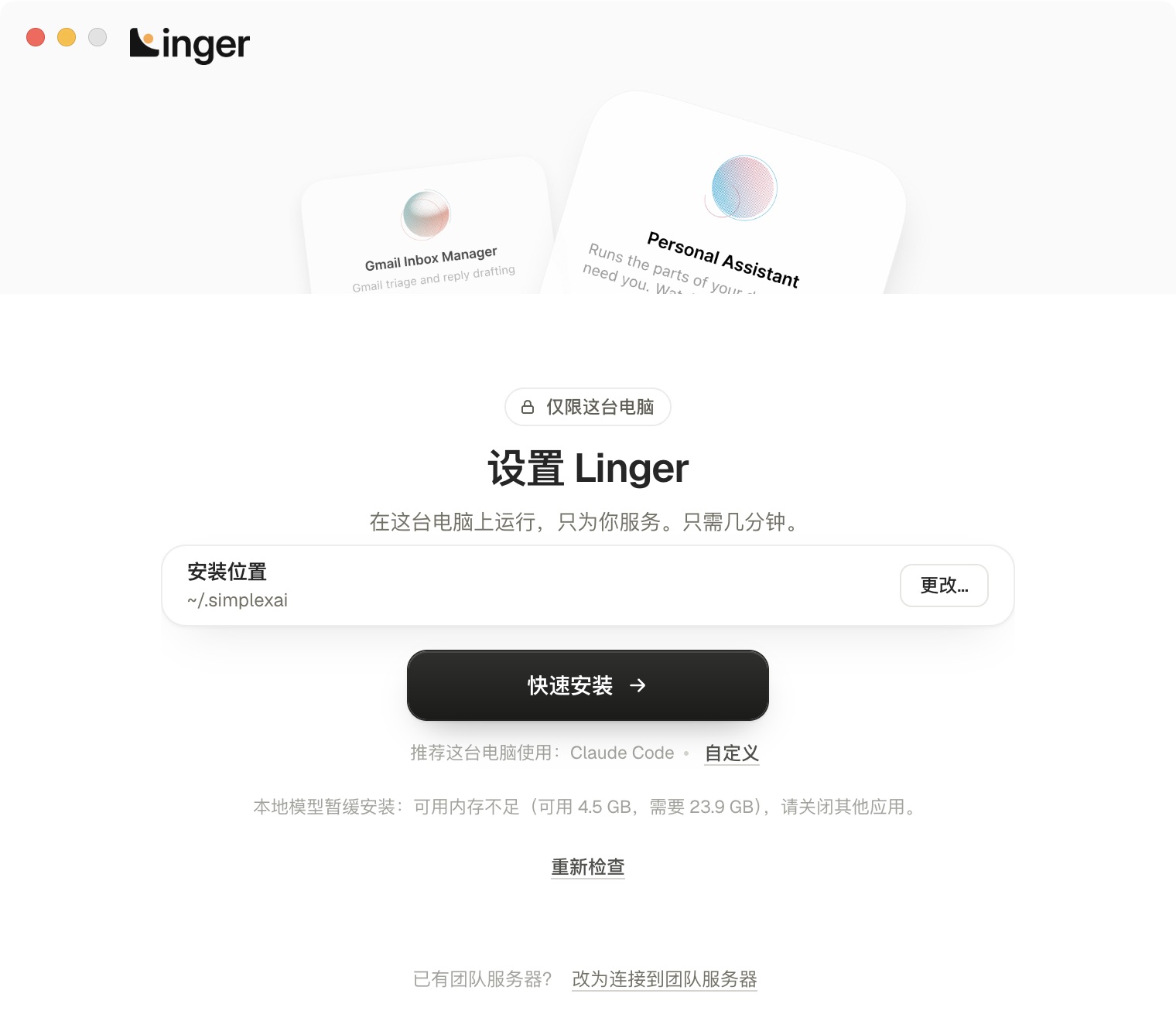
The local model needs 23.9 GB of available memory at the moment of the check. Our MacBook Pro has 32 GB in total, but browsers, office apps, and chat tools were holding most of it, leaving 4.5 GB free — so the wizard deferred the local model and suggested closing apps. Three honest ways forward:
- Close heavy apps and re-check. The wizard's "recheck" button re-reads free memory. A reboot right before installing works too.
- Accept that 32 GB is tight for this. Even with everything closed, a 23.9 GB gate on a 32 GB machine leaves little headroom. The model Linger recommends at this tier is Inkling 2 Mini (UD-Q4_K_M) — the same pick as the official 32 GB tier, a 16 GB download. The official reference speed for that tier is roughly 30 tok/s; that figure is published data from the project, not our measurement — we did not install the local model in this test, so we report no Mac tok/s of our own. The full official table is on our benchmarks page.
- Skip the local model for now. Use a subscription or BYOK and revisit local later. This is what we did.
Step 4 — BYOK setup (the configuration we verified)
We connected a DeepSeek account through its Anthropic-compatible endpoint. The four fields the wizard wants are:
| Field | Value we used |
|---|---|
| Base URL | https://api.deepseek.com/anthropic |
| Path | /v1 |
| Endpoint | /messages |
| Model | deepseek-reasoner |
Your key stays on your own machine — the wizard stores it locally for Linger's built-in gateway. (More on using DeepSeek with Linger on our DeepSeek page.)
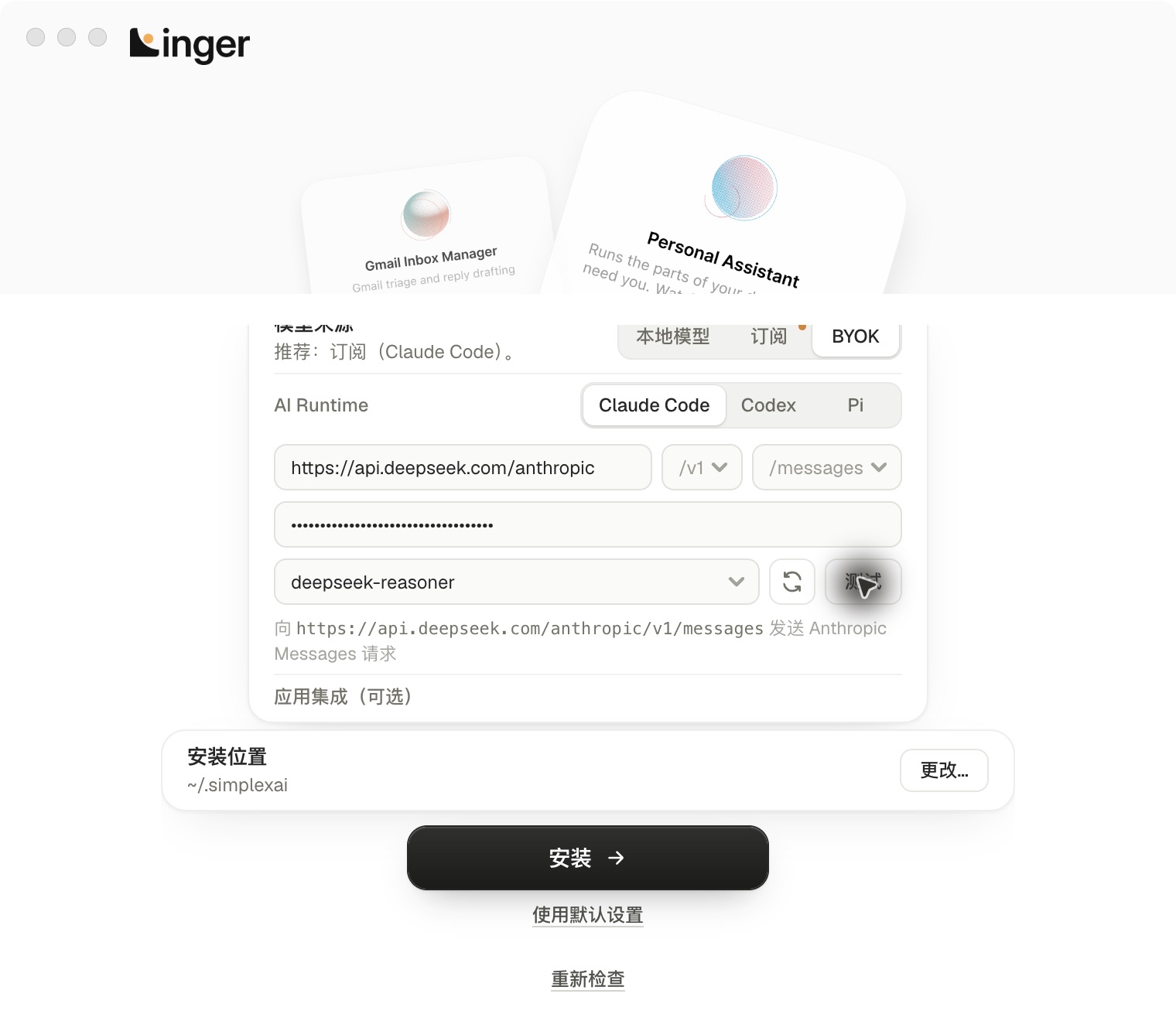
The one error that cost us a retry: our first install attempt stopped at 26% with "An API key is required for this endpoint." The key had never actually been submitted — the secure field hadn't taken focus, so it looked filled but was empty. The fix: click into the key field, confirm you can see the mask dots, press Test and wait for the "connected" message (ours read "deepseek-reasoner · 128k context · Anthropic Messages"), and only then press Install. Test first, install second — in that order.
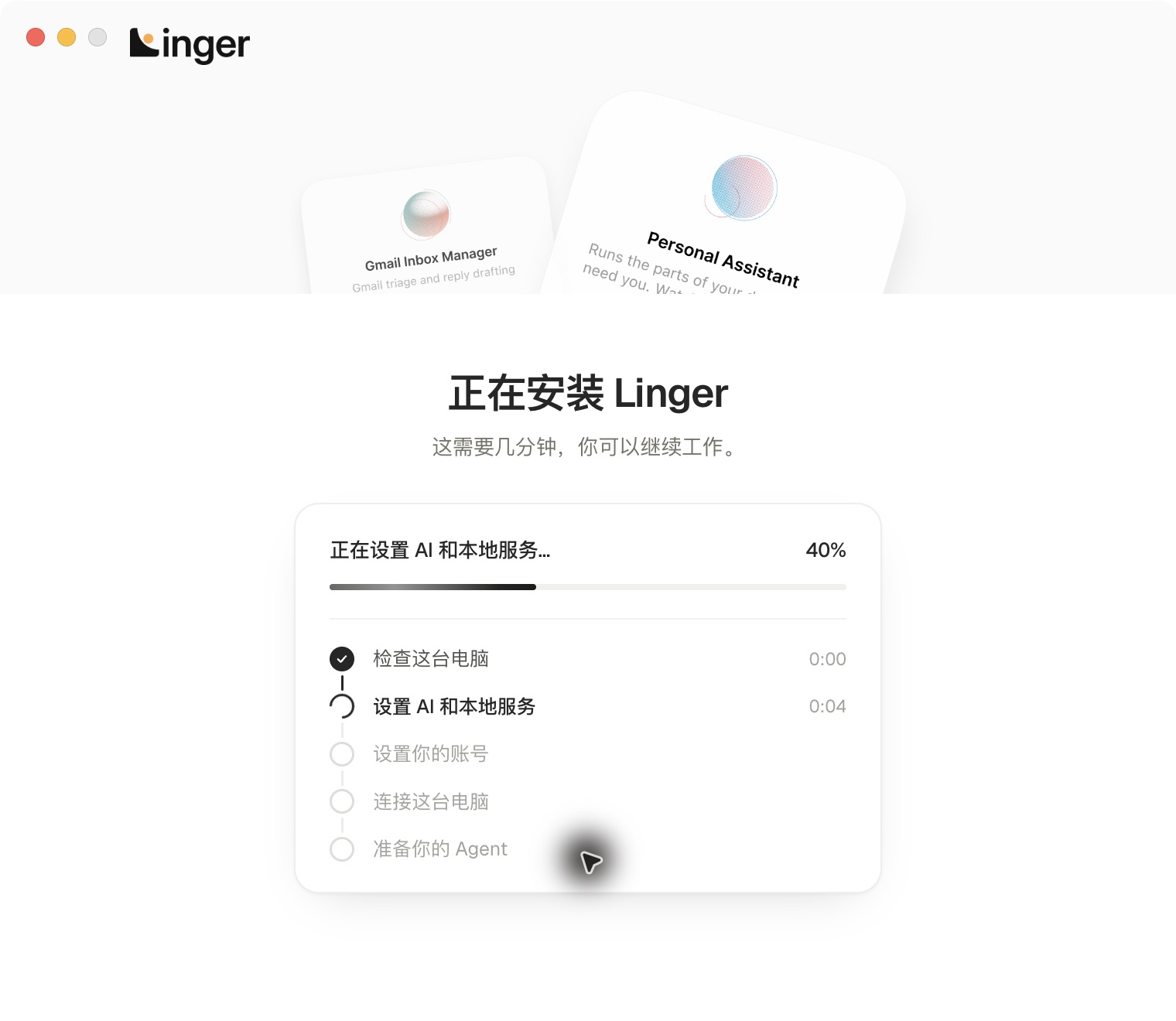
With a tested connection, the install itself ran from click to done in about 46 seconds.
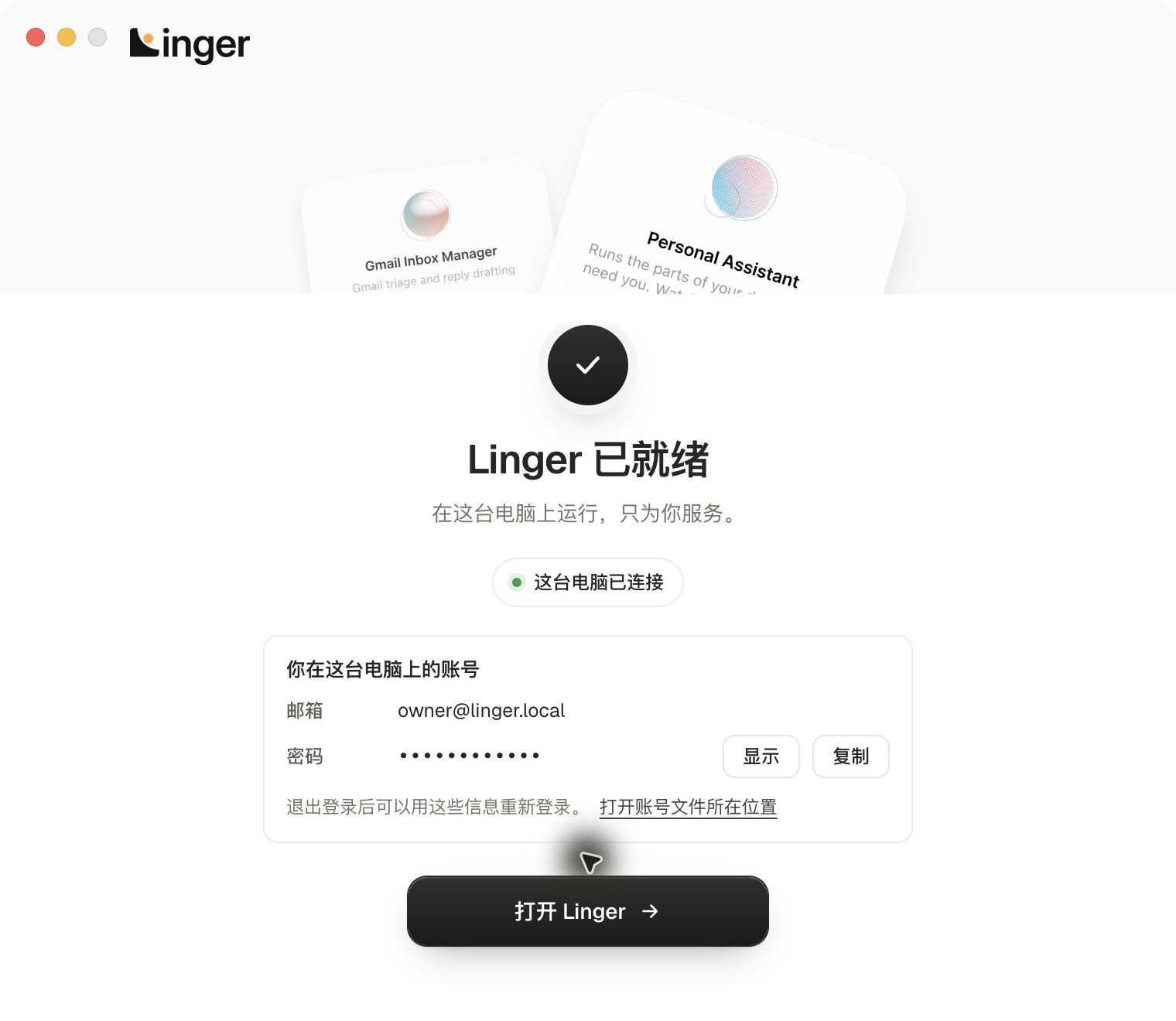
The finish screen shows your local account — [email protected] with a generated password. That password is shown here once; save it to your password manager before you click through. It is a local account for this machine only, not a cloud login.
Step 5 — First real task: it worked
A connection test only proves the key works. So we gave Linger an actual job: read two attached files, summarize one in three sentences, and add up the three numbers in the other (12, 30, 58). It answered correctly — summary accurate, 12 + 30 + 58 = 100 — in about 40 seconds, on the Claude Code runtime through the BYOK endpoint.
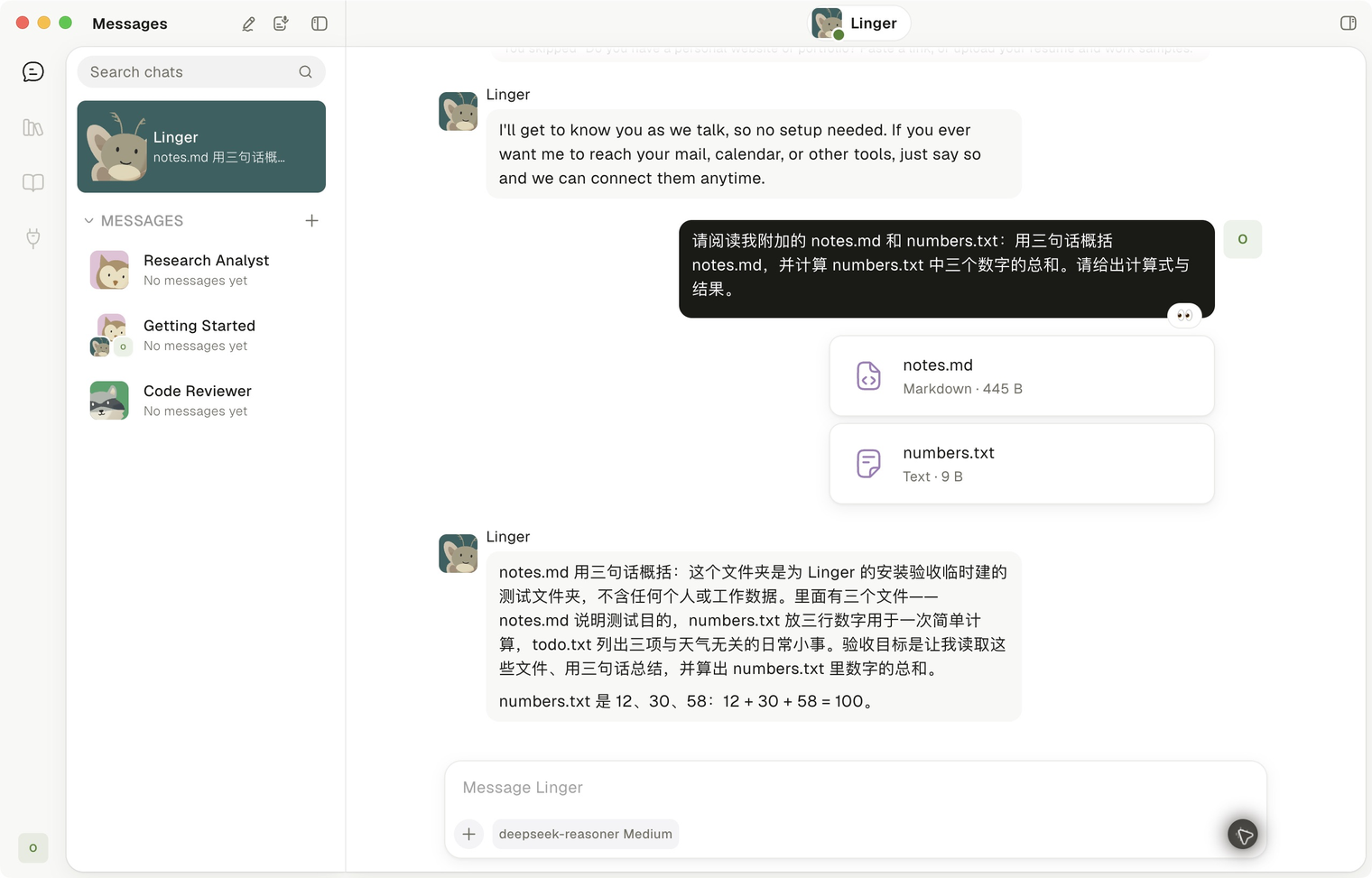
Worth stating plainly, because our readers hit it on Linux: the failure from our Linux hands-on test — where a BYOK setup passed its connection test and then every real run died with a runtime error — did not happen on Mac. Same runtime family, same BYOK pattern, different result. If you are choosing a platform for Linger today, that is a real point in the Mac's favor. Error details for both platforms are collected on our troubleshooting page.
Troubleshooting
Download stops partway (curl: (18) Transferred a partial file). Resume instead of restarting: curl -fL -C - -O <DMG URL>. Then re-run the SHA-256 check before installing — a resumed download is exactly the case the checksum exists for.
"Local model deferred: not enough available memory." This is about free memory right now, not your spec sheet. Close memory-heavy apps and re-check, reboot and install first thing, or proceed with BYOK/subscription and add the local model later. Background on why the gate is this strict is on our RAM requirements page.
The model list shows "Not Found" in the logs. Some endpoints (including DeepSeek's Anthropic-compatible one) don't implement the model-list call. Linger falls back to its built-in catalog and everything still works — just type your model ID manually, as we did. Harmless.
You skipped saving the local password. The finish screen links to the account file's location ("Open account file location"). Your data and settings live in ~/.simplexai — back up that folder (with Linger quit) if you want a copy of your setup.
Background processes after quitting. The release notes flag a known issue: quitting from the tray stops the local model, but other local services may keep running. If you want everything stopped, check for Linger processes in Activity Monitor.
FAQ
Can I install Linger on an Intel Mac?
Not with this DMG — the desktop build is Apple silicon only. Intel Mac owners can run Linger through the project's Docker Compose setup; see our Intel Mac guide.
Does Linger work on macOS 13?
No. The desktop app requires macOS 14.0 or later. We tested on macOS 14.8.1.
How fast is the local model on a 32 GB Mac?
We don't have a measured number: in this test the local model was never installed, because the wizard's available-memory check stopped it. The project's official reference for the 32 GB tier (Inkling 2 Mini, UD-Q4_K_M) is roughly 30 tok/s — published data, not our benchmark. All official figures are on the benchmarks page.
Is my data sent to the cloud?
That depends on the model source you picked. With a local model, inference happens on your Mac. With BYOK, your prompts go to the endpoint you configured (in our test, DeepSeek). With a subscription, they go to that provider. App integrations like Gmail or Calendar only activate if you connect them yourself.
What we did and didn't test
Tested on 2026-11-27: download and checksum verification, installation, Gatekeeper behavior, the setup wizard, the hardware check, a BYOK connection (DeepSeek, Anthropic-compatible endpoint) with the Claude Code runtime, and one real file-based task, which succeeded. Not tested: the local model (blocked by the available-memory check described above — so no Mac speed numbers from us), subscription sign-in, and app integrations. Screenshots are from the actual test machine; the API key and local account password were masked by the app itself, and machine identifiers were redacted. This site is independent of SimplexAI; for the Windows and Linux picture, see our Linux hands-on install log.