How to Install Linger AI Agent on Linux (Tested with 0.1.10)
Tested on: Debian 13 · Linux 6.18 · no GPU · 8 GB RAM — Linger 0.1.10 — screenshots taken 2026-11-26 — Data last verified: 2026-11-26
Every screenshot below was captured directly from our own test run on 2026-11-26 (Debian 13, x64, 4-core CPU, 7.8 GB RAM, no discrete GPU). Nothing was staged on high-end hardware; we documented what actually worked, what failed, and the exact error codes encountered.
Short answer
Linger Desktop is distributed through GitHub Releases, not the official website (the download buttons on heylinger.com still say "Coming soon"). The Linux build is a 432 MB tar.gz archive. Extract it, run the linger binary, and the setup wizard takes a few minutes. You must connect an agent runtime — Claude Code by default, or Codex, Pi, or your own API key (BYOK). Local models are only offered if your machine has an NVIDIA GPU or is an Apple Silicon Mac; on anything else the wizard tells you up front that no local model fits, and you run on a cloud runtime instead.
Step 1 — Download the installer from GitHub Releases
- Release:
desktop-v0.1.10(published 2026-11-26 06:41 UTC) - File:
Linger-0.1.10-linux-x64.tar.gz— 432,165,408 bytes - The same release also includes a macOS Apple silicon
.dmg(signed and notarized), a Windows x64 setup.exe, and a portable.zip.
Verify the download against official checksums before executing:
sha256sum Linger-0.1.10-linux-x64.tar.gz
# a1bd72a6f26ef3426a2ed3d8c70e46eb44b9e736e7a631e37976895e160fe479
Our downloaded file matched SHA256SUMS.txt from the official release exactly.
Step 2 — Extract and launch
tar xzf Linger-0.1.10-linux-x64.tar.gz
cd Linger-0.1.10-linux-x64
./linger
The extracted directory consumes about 806 MB. It is an Electron application; on Linux it requires glibc 2.35+ (our test system ran glibc 2.41 on Debian 13). Internally the app serves its web interface locally — the window title reads "Linger · localhost:3000".
Step 3 — First launch: the setup wizard
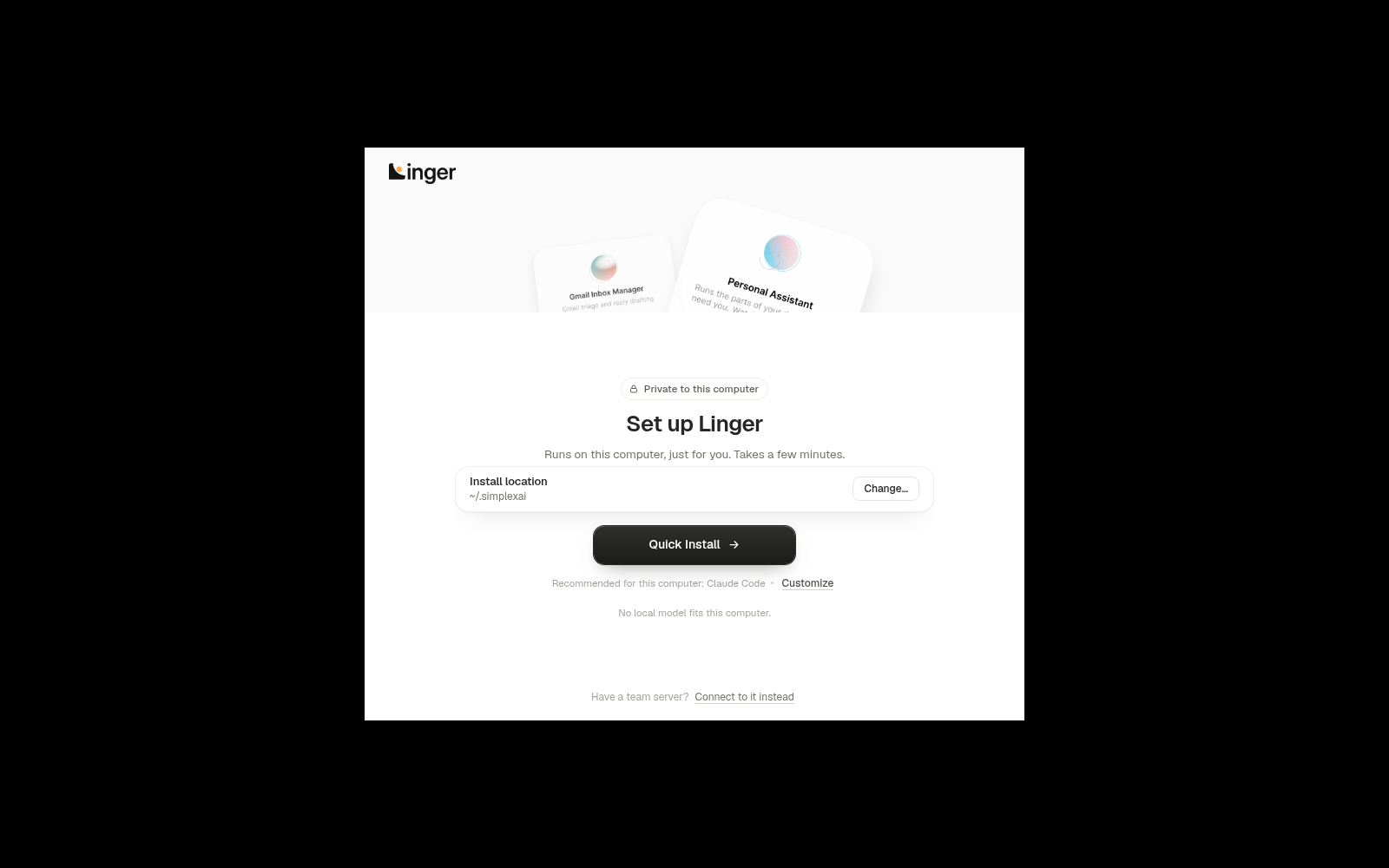
The initial screen is Set up Linger:
- Install directory: Defaults to
~/.simplexai(Change… lets you select an alternate folder; the wizard validates directory permissions and free storage first). Budget sufficient disk space: after initial setup,~/.simplexaioccupied 1.3 GB on our disk. - Quick Install: The standard path. The wizard evaluates your hardware: on our GPU-less test machine it reported: "Recommended for this computer: Claude Code" — and "No local model fits this computer."
- A Customize link lets you configure an alternate runtime immediately, while "Connect to it instead" joins an existing team instance.
Step 4 — Quick Install runs five steps
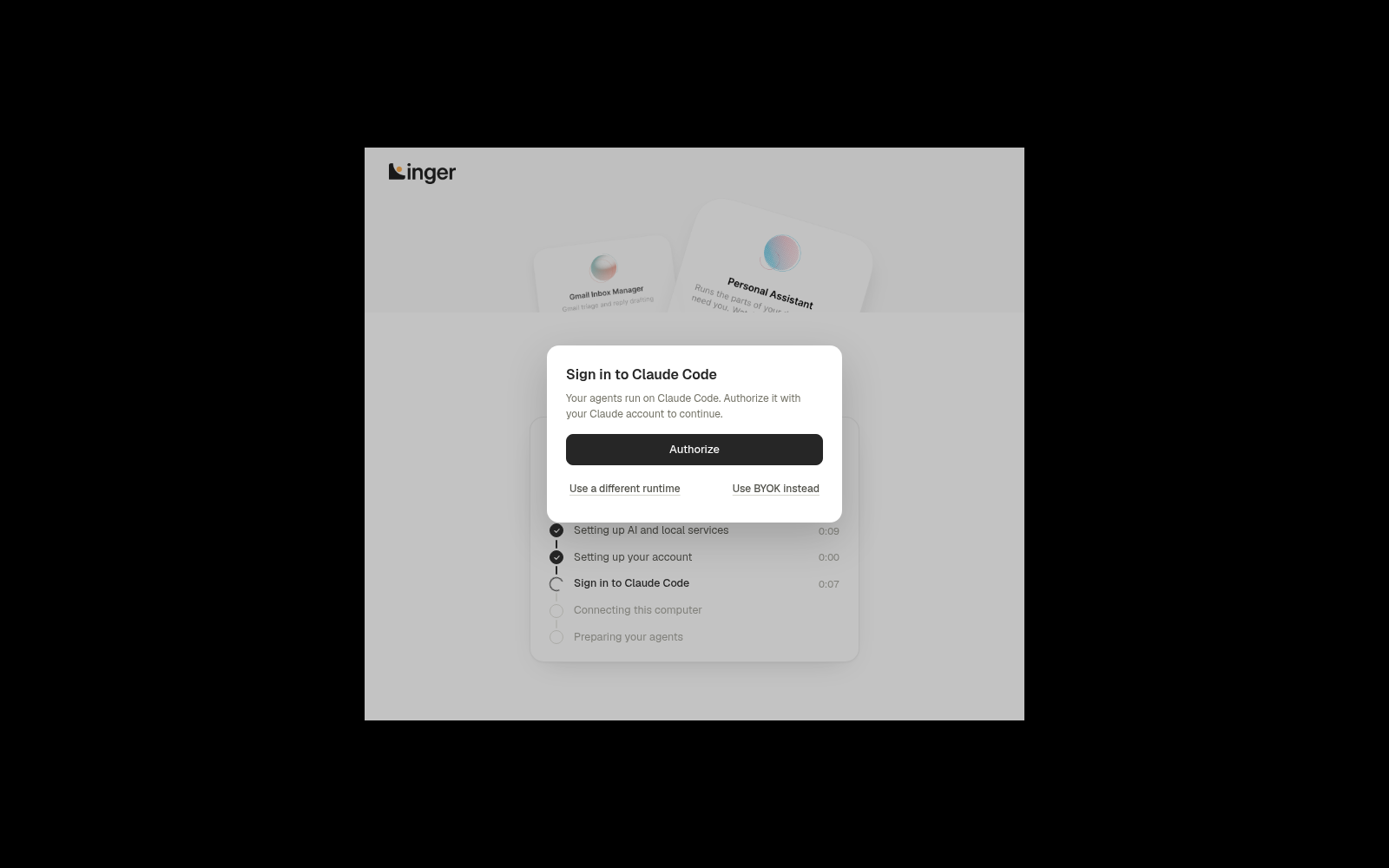
The wizard steps through a five-stage checklist:
- Setting up AI and local services (completed in 9s on our machine)
- Setting up your account
- Sign in to your runtime (Step 5)
- Connecting this computer
- Preparing your agents
Step 5 — Choose and authorize a runtime
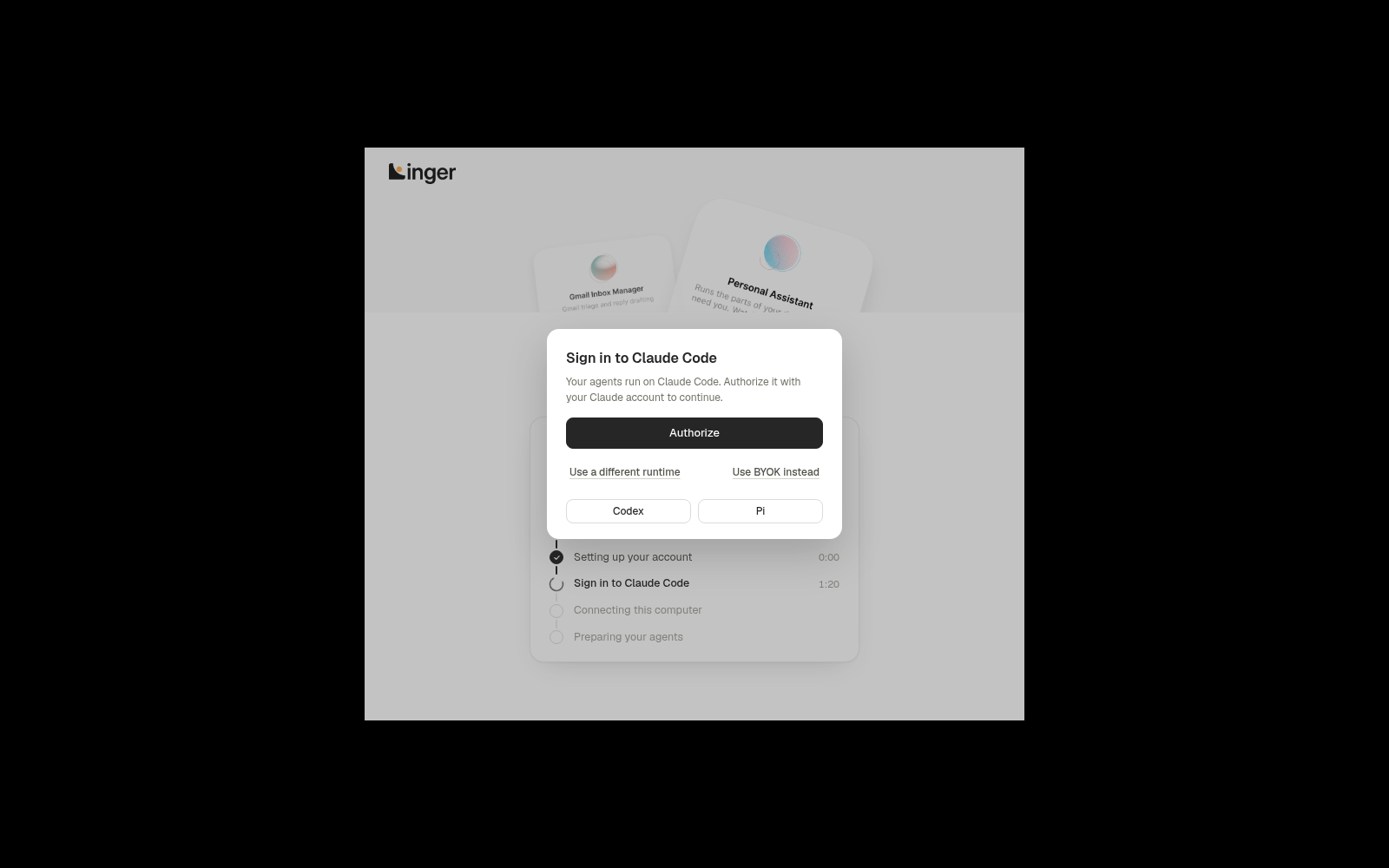
This stage requires user credentials to link your agent runtime account:
- Claude Code (default): "Your agents run on Claude Code. Authorize it with your Claude account to continue."
- Alternate runtimes: Codex or Pi.
- BYOK: Bring your own API key, stored locally on your machine.
What we used: BYOK with a Google Gemini key
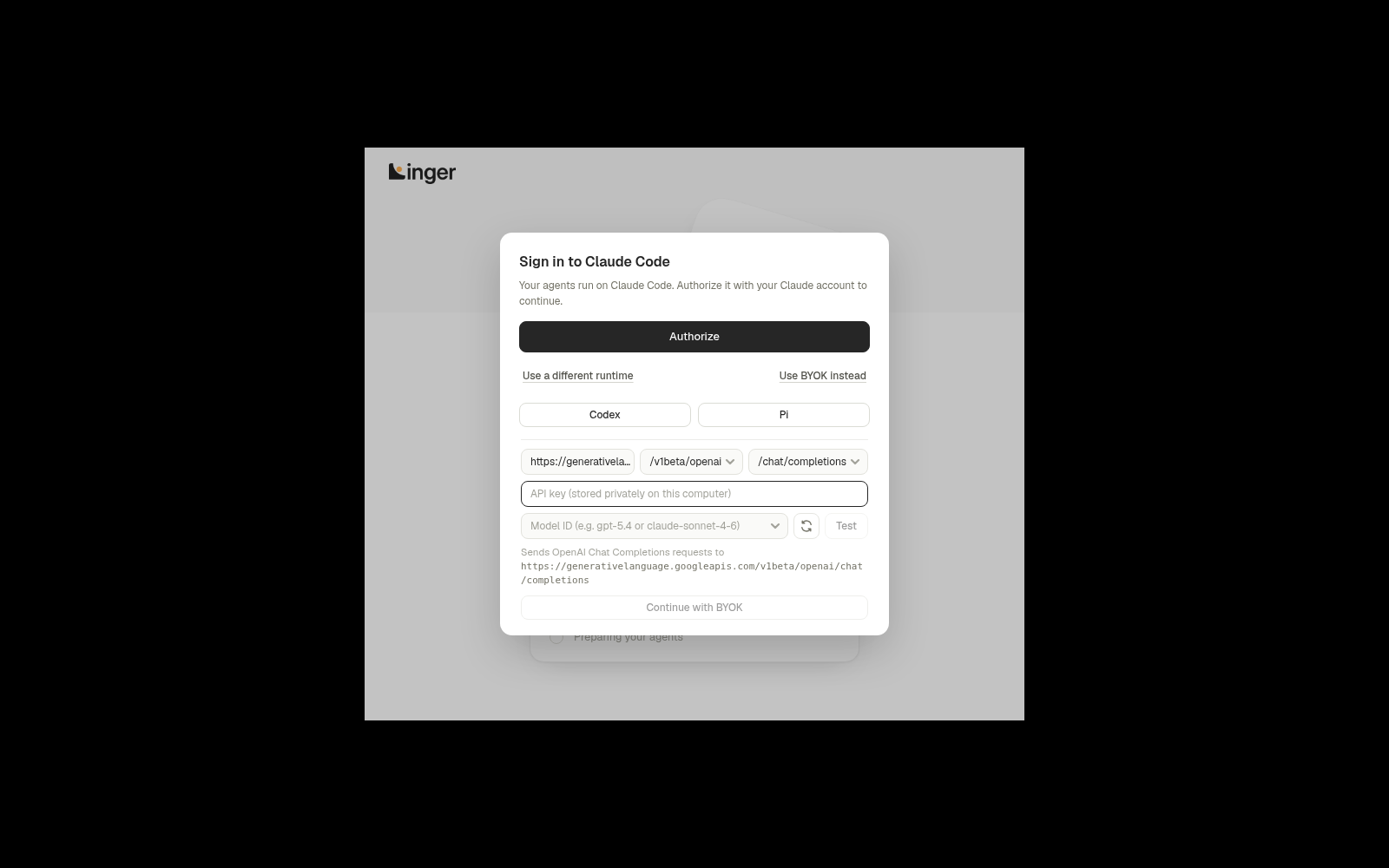
The BYOK interface constructs the query from Base URL + Path + Endpoint, and includes a provider preset dropdown with an option for Gemini:
- Base URL:
https://generativelanguage.googleapis.com - Path:
/v1beta/openai(the "Gemini" preset) - Endpoint:
/chat/completions - Model ID:
gemini-3-flash-preview
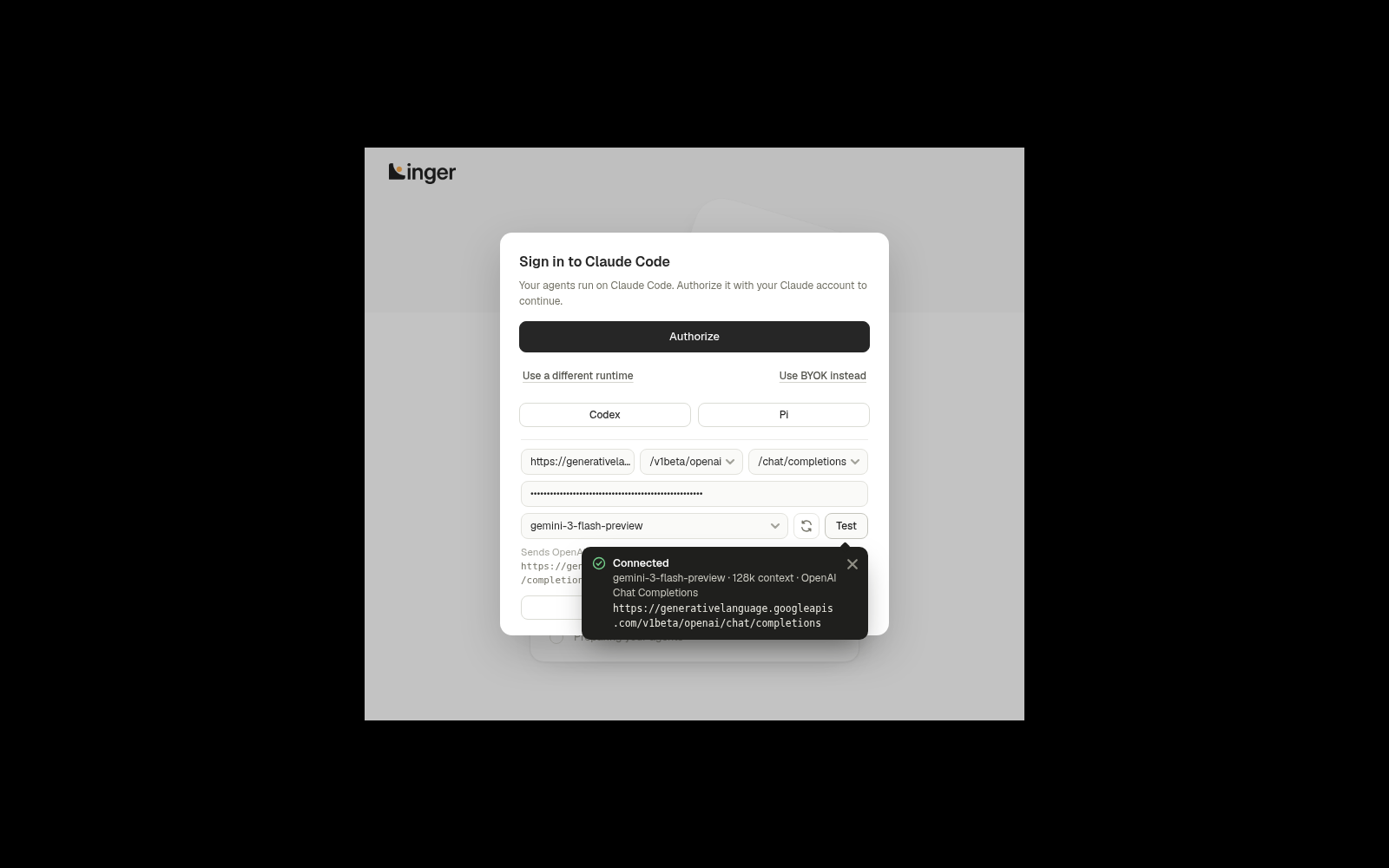
The built-in Test button validates connectivity: our test returned "Connected · gemini-3-flash-preview · 128k context · OpenAI Chat Completions."
Two Traps We Documented:
- Older Gemini models 404 on new API keys. Entering
gemini-2.5-flashresulted in "HTTP 404: the address or the model was not found." Calling Google's API directly revealed: "This model models/gemini-2.5-flash is no longer available to new users." Usegemini-3-flash-preview. - Anthropic format endpoints fail for Gemini. Specifying
https://generativelanguage.googleapis.com/v1beta/messages(Path: none, Endpoint:/messages) returned HTTP 404. You must use the OpenAI-compatible preset.
Step 6 — Setup finishes: "Linger is ready"
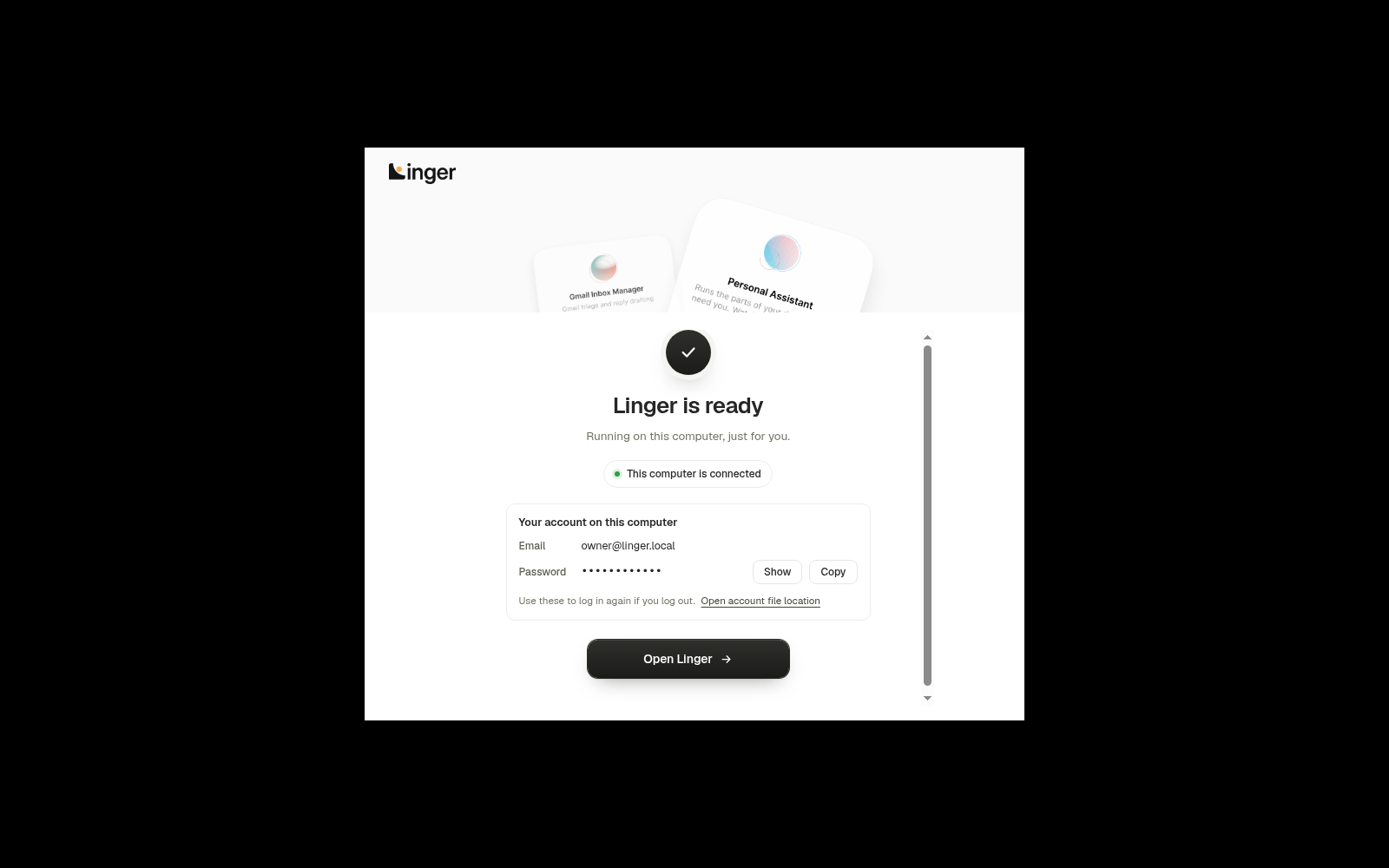
When the setup process completes, Linger displays "Linger is ready — Running on this computer, just for you" with a green "This computer is connected" indicator. It generates a local account for services (in our run: [email protected] with a generated password and credentials path shown). Click Open Linger.
Step 7 — The main window, first run
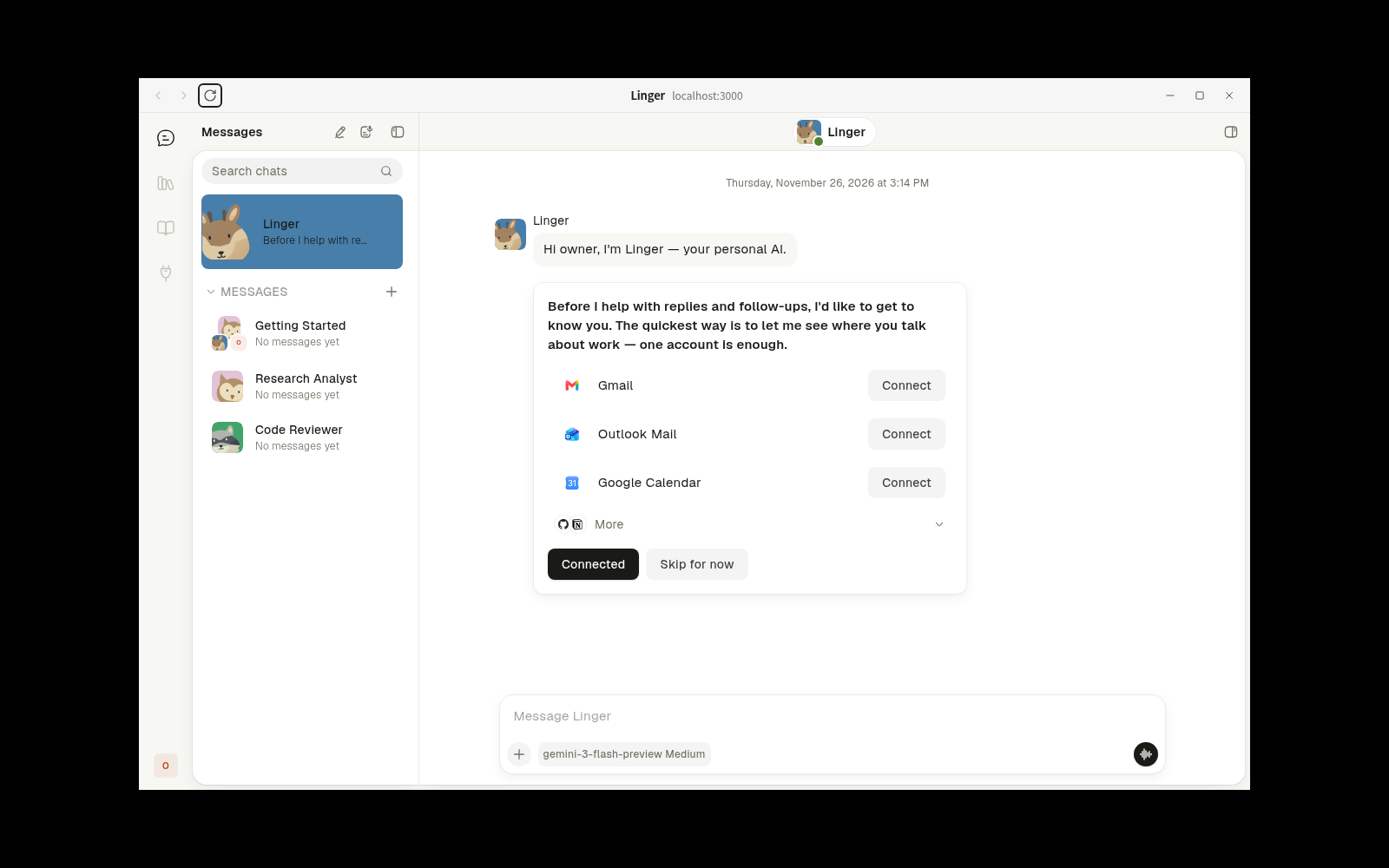
Workspace layout:
- Messages workspace: The left sidebar lists available agents: Linger (personal AI), plus starter templates: Getting Started, Research Analyst, and Code Reviewer.
- Onboarding prompt: Linger introduces itself ("Hi owner, I'm Linger — your personal AI") and invites you to connect Gmail, Outlook Mail, or Google Calendar (with GitHub and Notion under "More") for calendar and email follow-ups. All integrations can be skipped.
- Model chip: The message composer displays your active model — in our case a chip reading "gemini-3-flash-preview Medium" (the BYOK model with reasoning effort selection).
The local model catalog (Settings → Models)
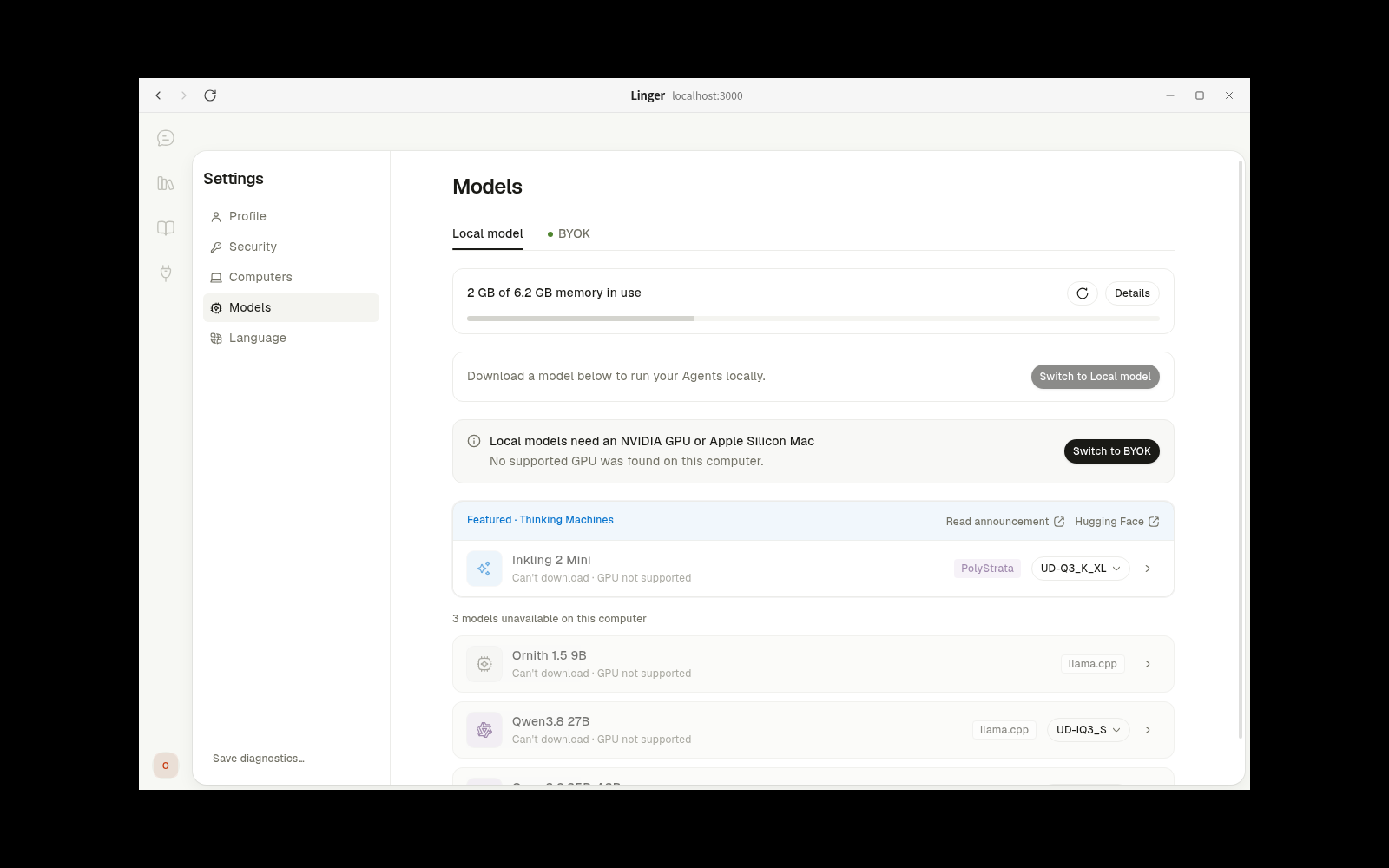
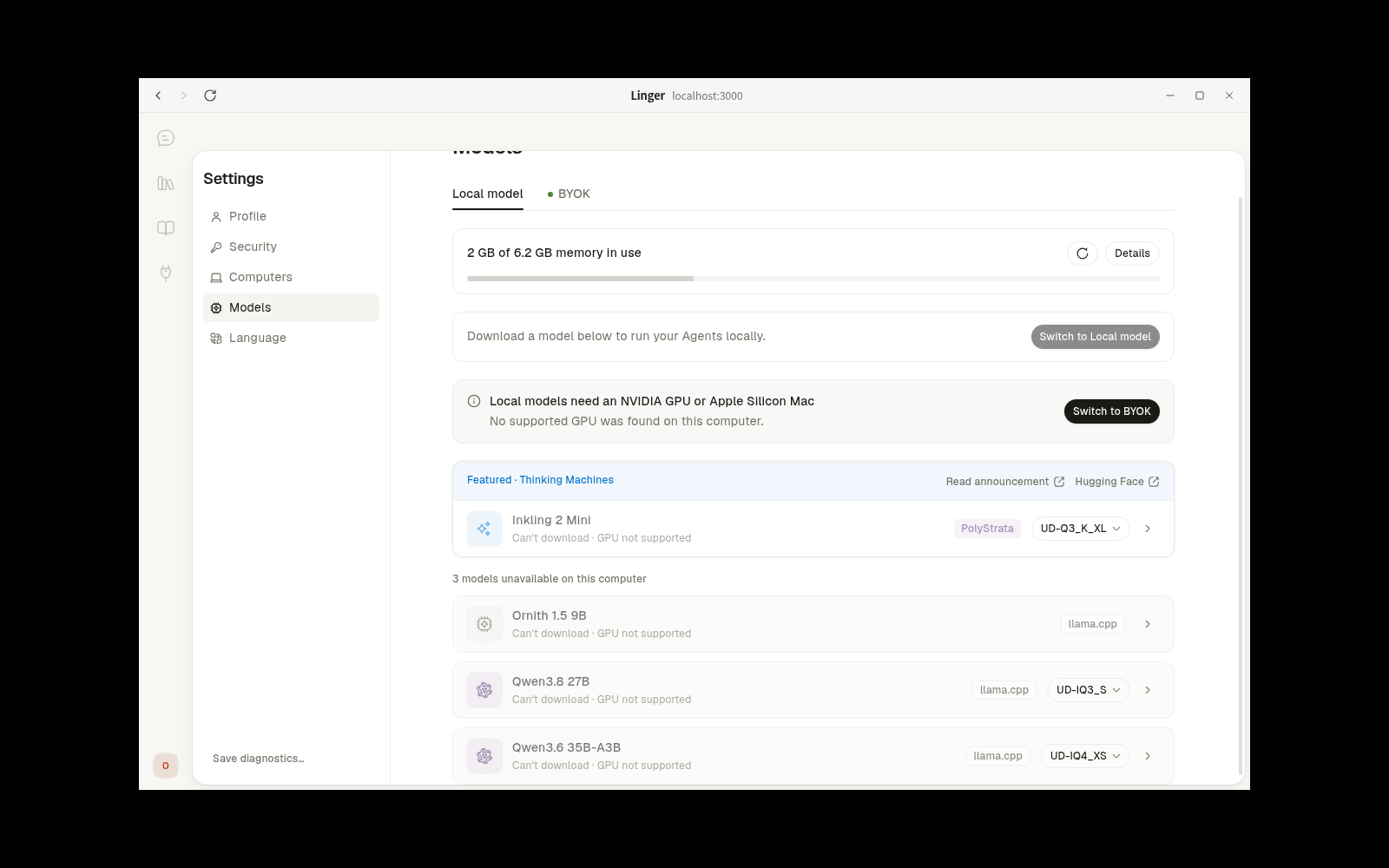
The Settings → Models area has two tabs: Local model and BYOK. Without a supported GPU, the Local model tab explicitly notes:
- Memory utilization meter (showing "2 GB of 6.2 GB memory in use").
- Status banner: "Local models need an NVIDIA GPU or Apple Silicon Mac — No supported GPU was found on this computer", with a quick link to "Switch to BYOK".
- Catalog entries marked "Can't download · GPU not supported":
- Inkling 2 Mini (featured, Thinking Machines) — PolyStrata engine, UD-Q3_K_XL quant
- Ornith 1.5 9B — llama.cpp
- Qwen3.8 27B — llama.cpp, UD-IQ3_S
- Qwen3.6 35B-A3B — llama.cpp, UD-IQ4_XS
The BYOK settings page
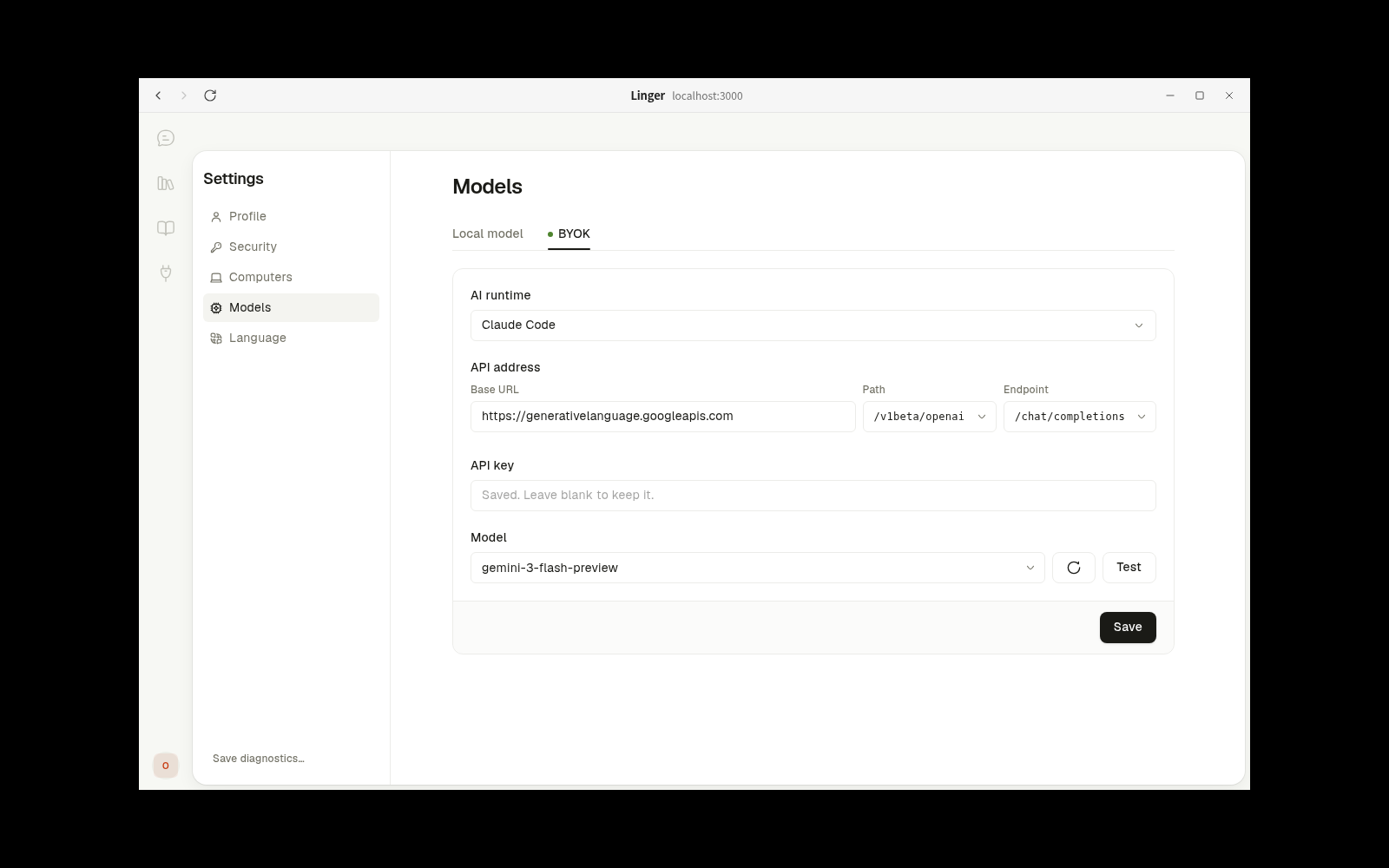
The BYOK settings screen preserves your configured parameters: AI runtime (Claude Code), Base URL, Path, Endpoint, and Model ID, with interactive Test and Save controls.
Honest notes from our test run — including what failed
- Hardware specs: 4-core CPU, 7.8 GB RAM, no discrete GPU, Debian 13. Deliberately below the official hardware requirements for local models to evaluate edge-case behavior.
- What worked: Archive download, checksum verification, full installation, setup wizard execution, BYOK connection to Gemini (Status: Connected), main UI launch, agent onboarding flow, Settings navigation, and hardware detection.
- What failed — Full agent runs over BYOK: When submitting an actual task message in chat, the app returned "Couldn't finish. Its AI app stopped with an error." Checking Linger's internal log file (
~/.simplexai/instances/desktop/native/logs/node-services.log) revealed that the agent executed on the bundled Claude Code runtime (v2.1.288), which crashed withapi_error, statusCode 400against Google's OpenAI-compatible endpoint. Even though the endpoint passed the connection test, the full multi-turn agent payload with tool schemas was rejected by Google's API. Subscription-based runtimes (Claude Code / Codex direct login) represent the primary tested path. - Release cadence: SimplexAI published 0.1.9 on Nov 25 and 0.1.10 on Nov 26. Release updates occur rapidly.
Frequently Asked Questions
Is Linger free to download?
Yes. The installers on GitHub Releases are free and open source under the Co-Workspace Open Source License. Running agent tasks requires either your connected runtime subscription (Claude/Codex) or API credits under BYOK. Local models consume no API tokens.
Why does the official site say "Coming soon" if installers exist?
The download buttons on the official landing page (heylinger.com) are currently set to waitlist mode. The functional desktop installer binaries are published directly on GitHub under the simplexai-labs/linger Releases tab.
Can I run Linger without a GPU?
You can run Linger with a cloud runtime (Claude Code, Codex) or BYOK API keys. However, local models will not be downloadable: the app requires an NVIDIA GPU (≥8GB VRAM) or Apple Silicon Mac (≥16GB unified memory).
Which Gemini model should I specify for BYOK?
Use a current model such as gemini-3-flash-preview. Legacy models like gemini-2.5-flash return HTTP 404 for newly created Google AI Studio keys.